Pages in Documentation

Settings

UI3 Overview

[old] Doors UE5
Quick Guide 2026
Quick Start
Swap Actor
Custom Assets
System Drawings
Guide 2022
Tips & FAQ
Guide 2024
Updating
Feat. w. Preview
Fix Bugs
FAQ & Tips
Cost Reports
Modes
Other Features
Designer
Edit Scene
Var Actor
New in 2026
Multi-Unit-Prj
Google Sheets
Data Tables
Video Guides
Quick Videos
Designer
Cost Tracking
Widget Panels
Quick Guide
Scene Settings
Connect BP
VR projects
Version History
F. w. Preview
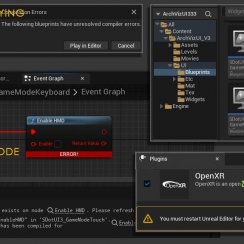
Fix Known Bugs
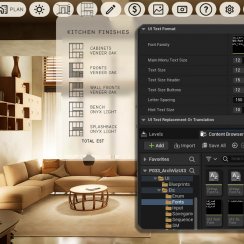
UI Settings
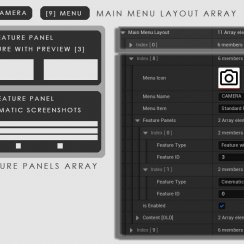
UI Layout
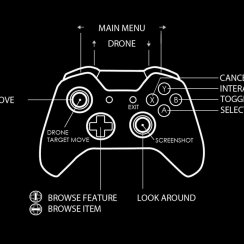
Gamemode
FAQ + TIPS
Quick Guide
V4 Functions 2
V4 Functions P1
V4 Quick Guide
Ver History
V3 Placements
V3 Mesh Def.
V3 Segments
V3 Quick Start
Books V2
Books V1
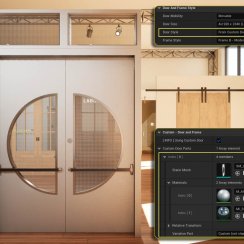
Custom Assets
Additional Assets
User Guide
Swap Actor
FAQ + TIPS
Doors UE4 (V1)

3.1 Bugs Fixes
Ver History
V2 Generic BP
V2 Examples
V1 Railings Fences

UI 1 - Part 1
UI 1

Ui 1 - Part 2

1 Overview
UI2 Features
UI2 Get Started
UI2 Info Map
UI2 BP Actors
UI2 User Manager
UI2 FAQ
UI2 Tutorials

UI3 Overview
Getting Started

3.1 Info Map
Variation Actor
Blueprints
Frequently Asked Questions And Tips
Frequently Asked Questions
Content:
Multiple Couches and Tables in the Scene
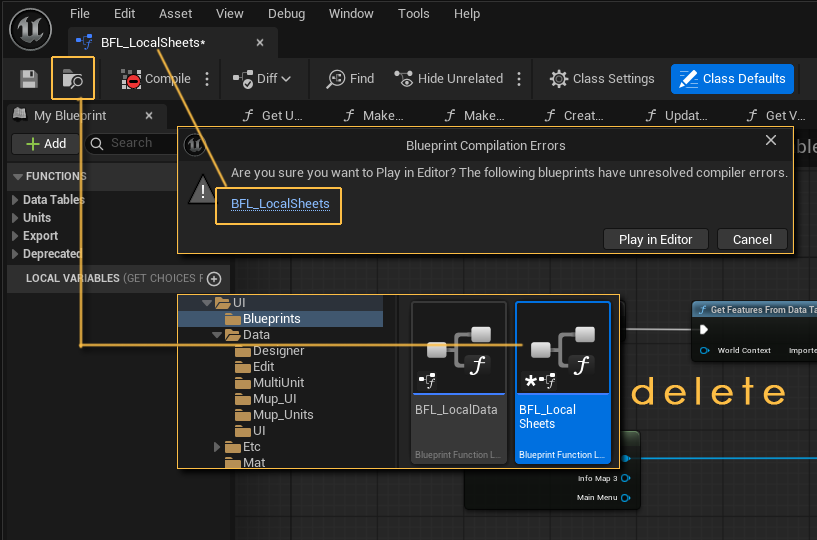
BFL_LocalSheets Error
You can ignore this error when playing in editor but this error will prevent the project from being packaged!
The new version doesn't have that file anymore. You can safely delete this file if you updated your project from a previous version to avoid this error.
Multiple Couches and Tables in the Scene
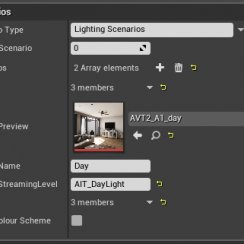
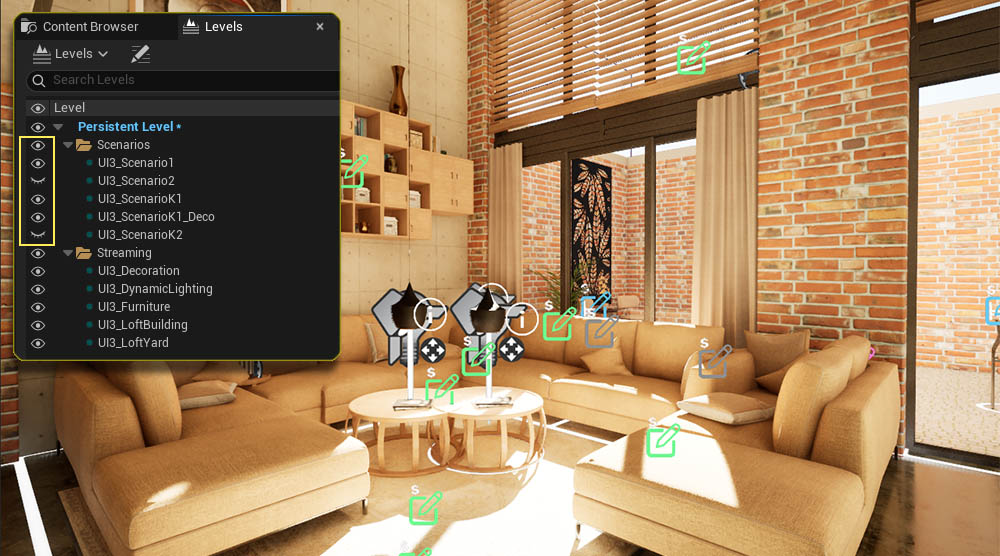
There might be multiple couches and tables in the living room area of the project. Unfortunately there are multiple scenarios active in the 2026-07 version.
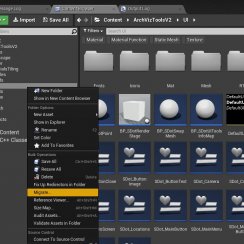
- Open the Level Browser
- Check the levels in the Scenarios folders
- Hide the level UI3_Scenario2 by clicking the eye icon.
Packaging Failed
Visual Studio Version
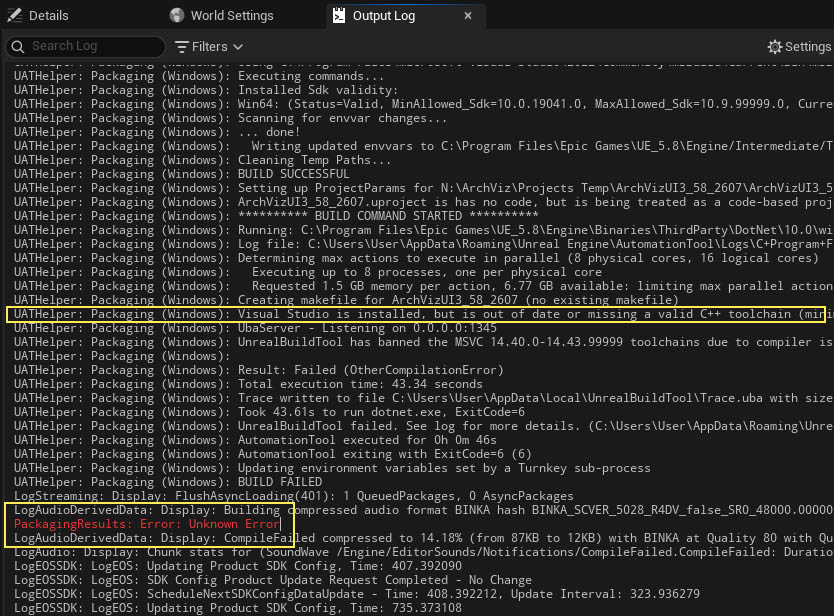
In case the packaging fails within a minute or so. Open the Output Log and search for the Packaging Result: Error (Unknown Error).
Then look upwards for any Visual Studio messages like this:
UATHelper: Packaging (Windows): Visual Studio is installed, but is out of date or missing a valid C++ toolchain (minimum version 14.38.33130, preferred version 14.50.35717). Please update Visual Studio to 17.8 or later and verify that the "MSVC Build Tools v14.50 for x64/x86" component is selected in the Visual Studio installation options.
This message should tell you which Visual Studio version needs to be intalled.
It can take very long when packaging for the first time. It will go much faster when re-packaging again later.

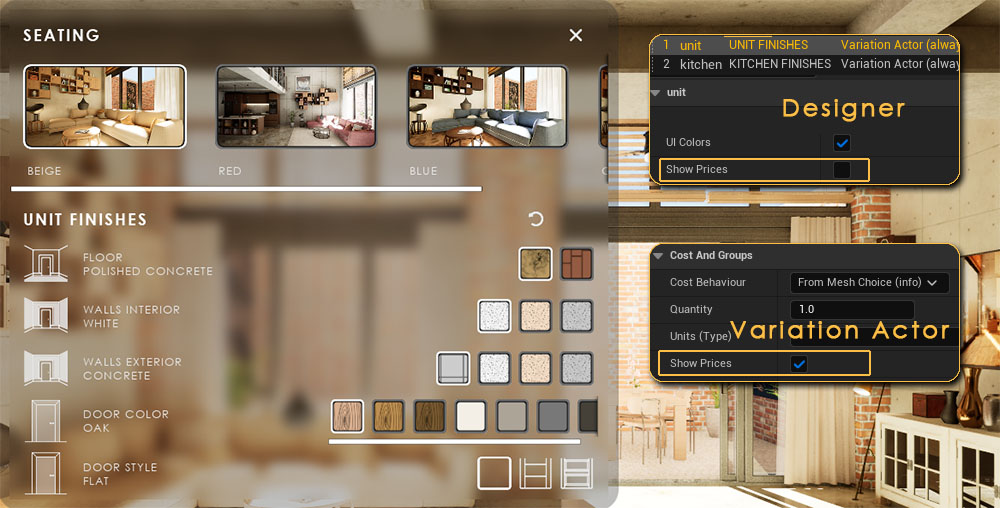
Can I hide the prices everywhere?
General Settings
There is a tick box to disable cost tracking in the general settings.
You can also disable prices in individual widget and blueprint settings.
Designers
Disable the tick box Show Prices in the Designer Data Table for the designer you which to hide the prices from.
Variation Actor
Disable the tick box in Cost And Groups to hide prices in Edit Mode
Sun Loop not working
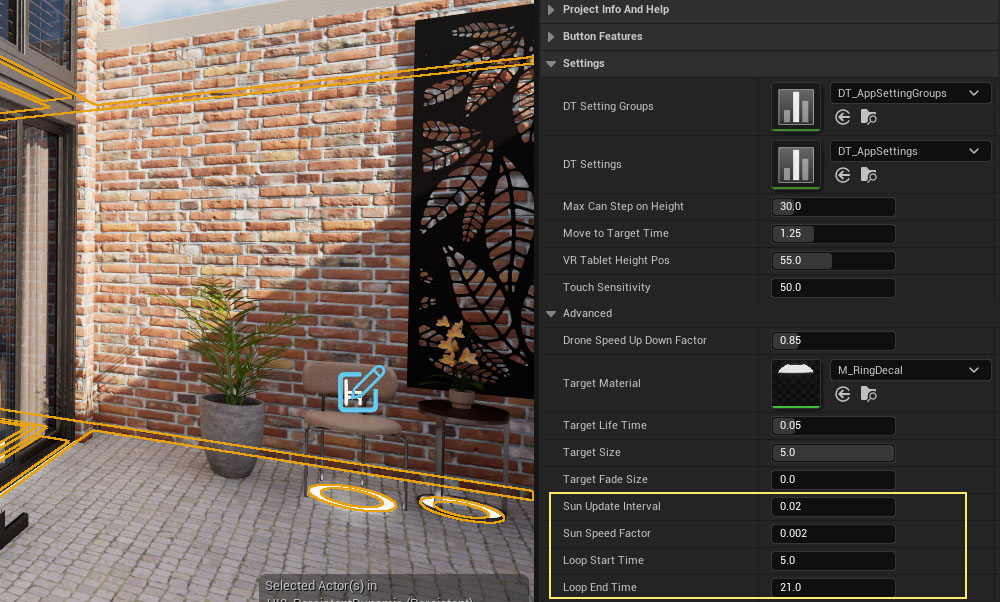
The sun loop may not start in some engine versions.
UI3 manually sets the time and sun position a bit ahead with every few frames. The time it waits between each steps can be set with the Sun Update Interval in the Settings - Advanced section of the info map.
The default value is 0.02 which is a value related to the tick delta. You can try to set this value to 0.00 which works for UE 5.7 as I was told.
A tick event happens at the beginning of every frame. So the working value could be different depending on the PC and the scene performance.
Create Files
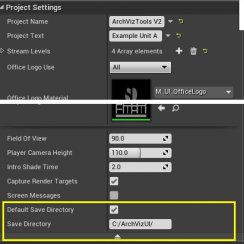
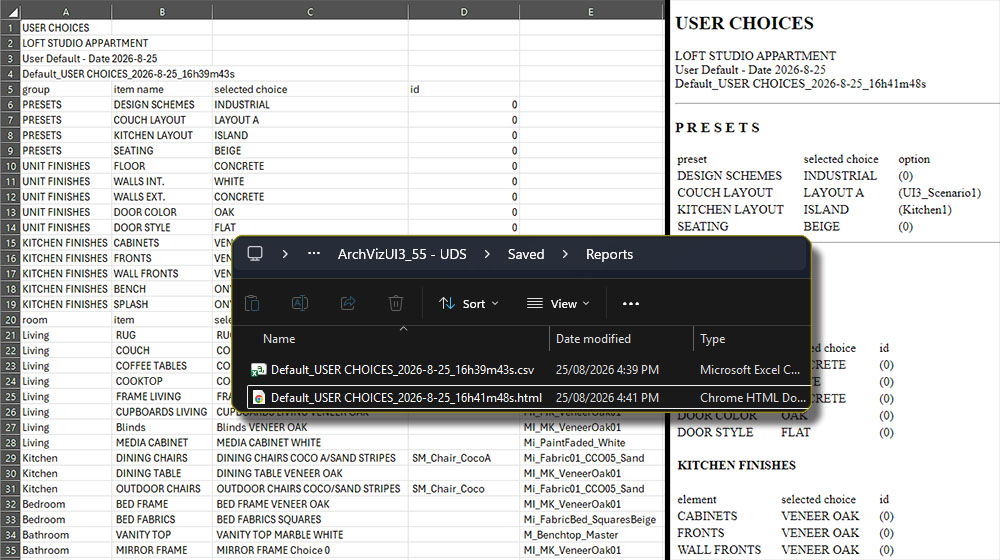
Files will be saved to the Save Directory set in the Info Map. By
default the directory is
>> MyProject / Saved / Reports
The files will be saved with the user, time, and date in the file name.
Take a screenshot if the files are not getting saved. Taking a screenshot will somehow allow the project to create files. It may take a long time to take the first screenshot but it should be fast afterwards.
Button Action
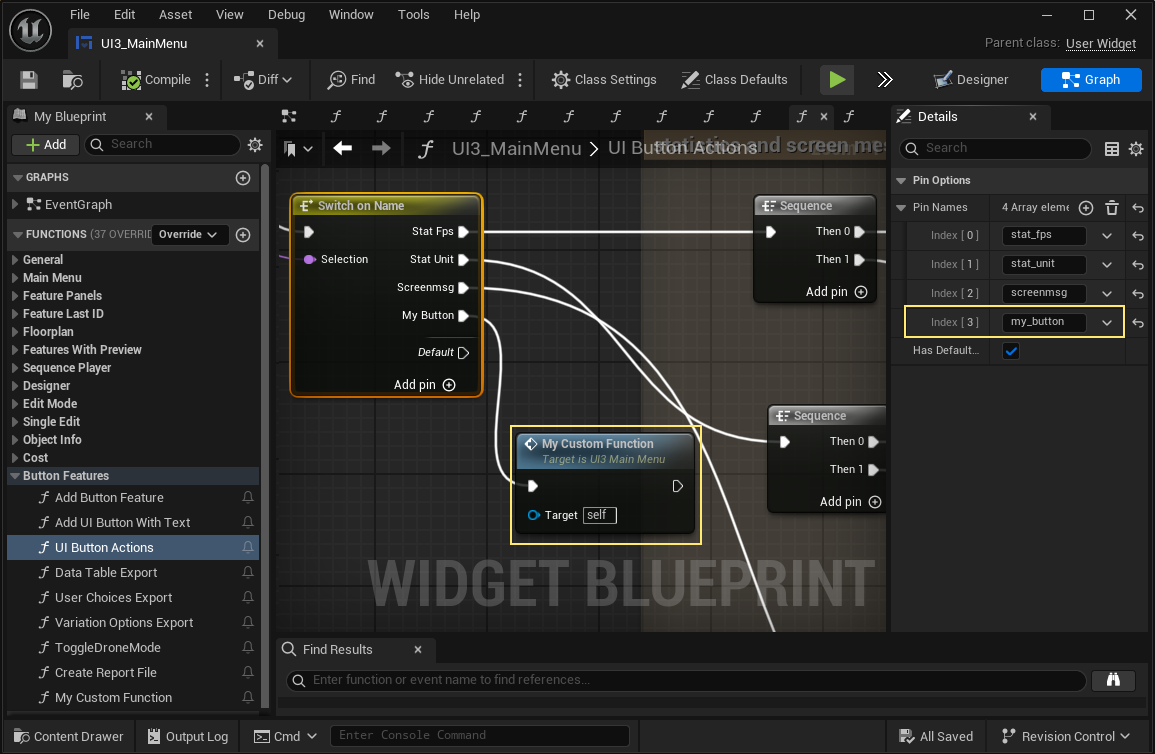
Open the Main Menu widget and switch to the graph.
- Open the function UI Button Actions (Button Features).
- Scroll down to the last Switch On Name node.
- Click on Add pin.
- Double click the node to open the list of pins.
- Rename the new pin to the Row Name of the new button you added to the data table.
- Create a new function, place it into the graph and add it to the new pin.
Now you can add your actions to the new function and they will be triggered when the button is clicked.


 Top of page